Official Website
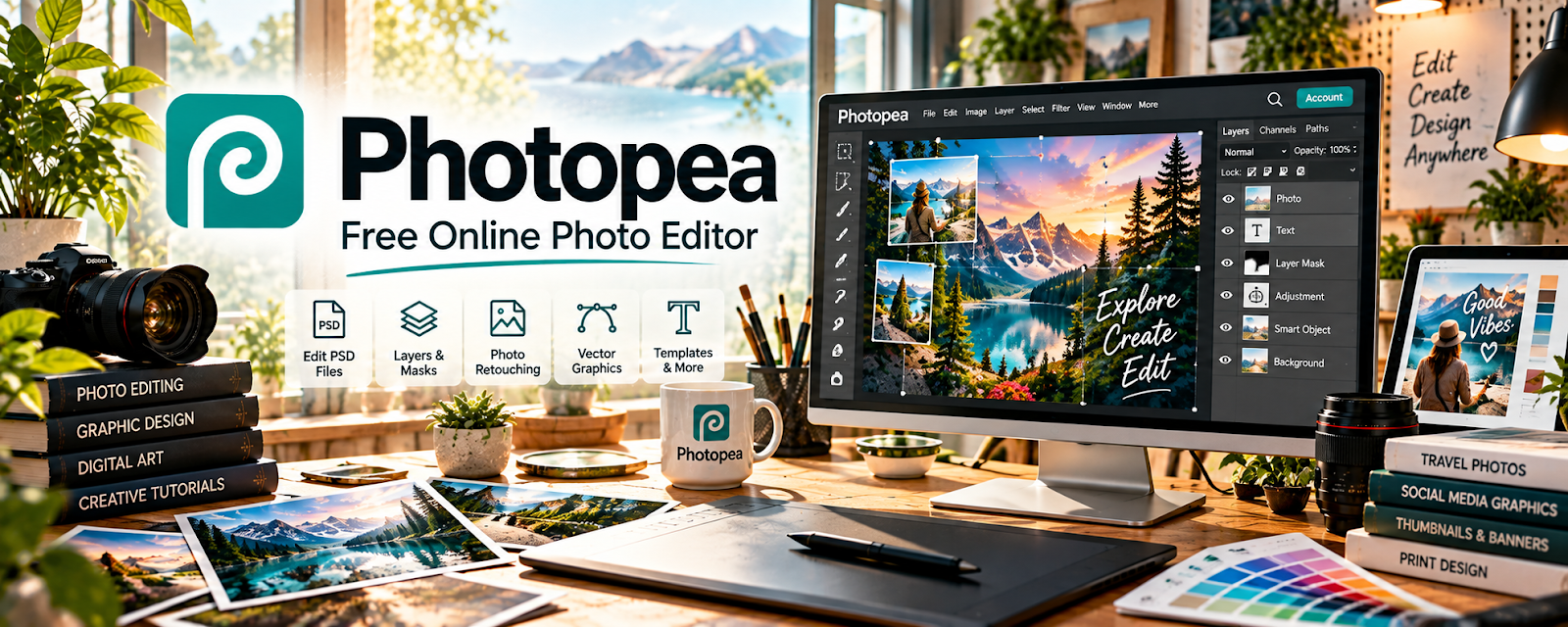
Photopea is a free, browser-based image editor similar to Photoshop.
🔗 Visit Official Website — Photopea
Domain: www.photopea.com
What This Website Is
Photopea is a free, browser-based image editor similar to Photoshop. For the 🎬 Faceless Video Content Creation side hustle, it can be used to create thumbnails, templates, overlays, and branded assets quickly.
How to Apply It to 🎬 Faceless Video Content Creation
Use Photopea as your “thumbnail + assets” tool: create templates once, then reuse for every video.
Step-by-Step Implementation:
- Phase 1: Create 2–3 thumbnail templates for your niche.
- Phase 2: Build a small brand kit (fonts, colors, icons).
- Phase 3: Produce thumbnails in batches and track CTR results to iterate.
Common Use Cases for this Side Hustle:
- Scenario A: If thumbnails are inconsistent, use a template system.
- Scenario B: If you need speed, batch-produce assets for 10 videos at a time.
- Scenario C: If CTR is low, test new layouts and text styles.
When to Use This
- You need quick thumbnails and graphics.
- You want a free alternative to Photoshop.
- You want reusable templates for consistency.
- You work primarily in the browser.
Best Tasks to Use It For
- YouTube thumbnails
- Overlay graphics and banners
- Template creation
- Quick photo edits and cutouts
- Brand kit assets
Getting Started Steps
- Open Photopea in your browser.
- Create a thumbnail canvas size you use consistently.
- Build 2–3 reusable templates.
- Save/export template files for reuse.
- Create thumbnails in batches.
- Track which thumbnails perform best.
- Iterate monthly based on CTR/performance.
Good Beginner Search Terms
- Photopea thumbnail template
- YouTube thumbnail design tips
- increase CTR thumbnails
- Photopea remove background
- best thumbnail fonts
- thumbnail A/B testing
Monetization Angle
Better thumbnails improve clicks, which increases views and revenue potential. Photopea helps you make higher-quality thumbnails without paid software.
Pros
- Free and browser-based
- Familiar Photoshop-style controls
- Great for quick asset work
Cons
- Can be slower on large files
- Fewer advanced features than Photoshop
- Requires good design judgment for best results
Who Should Use This
Faceless creators who need fast, consistent thumbnails and don’t want to pay for Adobe.
Who Should Skip This
Skip this if you need heavy professional photo manipulation or deep Adobe workflows.
Practical Applications
- Create original thumbnails and title graphics for a faceless-video series.
- Build reusable visual templates with consistent type and spacing.
- Export a test asset and check its readability at the actual display size.
Important Considerations
- Confirm the commercial rights for fonts, images, and templates used in the design.
- Keep backups of editable files and test large projects on your device. A graphics editor does not verify factual claims or grant permission to use third-party artwork.
Related Resources
CapCut — edits short-form clips, faceless video assets, and social repurposing cuts
OBS Studio — records screen content or raw footage before thumbnail/design packaging
Loom — records quick walkthroughs, tutorials, and process videos for content workflows
Google Drive — stores thumbnails, templates, raw assets, exports, and brand files
Related Side Hustles
 Blogging: Build an Online Brand and Earn from Your Words — reuse video scripts as blog posts and embed videos for extra traffic
 Affiliate Marketing: Get Paid to Promote What You Love — faceless videos can drive clicks to affiliate links via descriptions/landing pages
 Freelance Writing: Get Paid to Write Online — scriptwriting is paid writing; the same skills apply to client work