Official Website
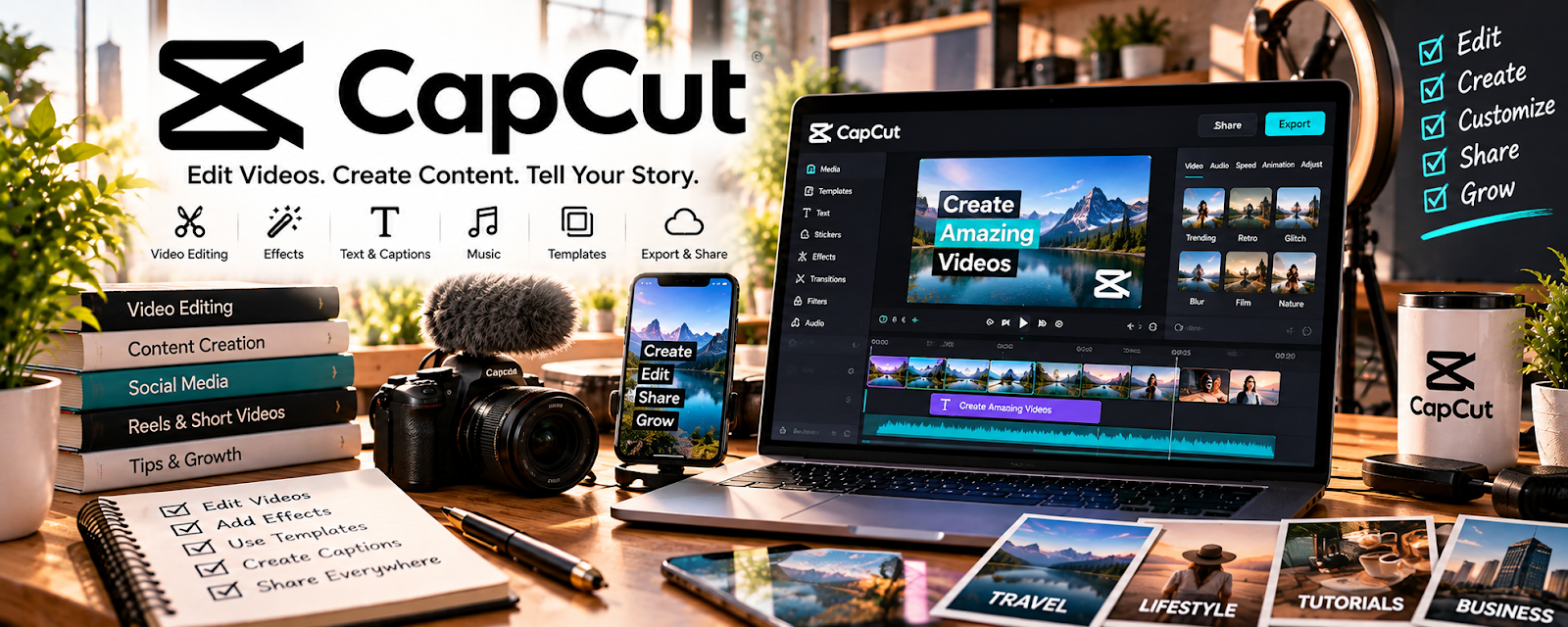
CapCut is a freemium video editing tool (desktop and mobile).
🔗 Visit Official Website — CapCut
Domain: www.capcut.com
What This Website Is
CapCut is a freemium video editing tool (desktop and mobile). For the ▶️ YouTube Automation side hustle, it can be used to edit voiceover-based videos, add captions, templates, and effects, and produce videos quickly.
How to Apply It to ▶️ YouTube Automation
Use CapCut as your fast editing pipeline: assemble clips → add captions/b-roll → export → publish.
Step-by-Step Implementation:
- Phase 1: Create editing templates (intro, subtitles, lower thirds).
- Phase 2: Build a repeatable editing checklist for every video.
- Phase 3: Batch edit and upload on a consistent schedule.
Common Use Cases for this Side Hustle:
- Scenario A: If you want speed, use templates and presets.
- Scenario B: If retention is low, add pattern interrupts and captions.
- Scenario C: If you want consistency, standardize style and pacing.
When to Use This
- You need fast edits for short/long videos.
- You want easy captions and templates.
- You edit primarily on mobile or lightweight desktop.
- You’re producing videos frequently.
Best Tasks to Use It For
- Cutting and assembling clips
- Adding captions and effects
- Creating reusable templates
- Exporting platform-ready videos
- Batch editing workflows
Getting Started Steps
- Install CapCut (desktop or mobile).
- Create a project template for your channel style.
- Import voiceover and b-roll.
- Add captions and highlight key points.
- Use a pacing checklist (cut dead time, add visuals).
- Export with consistent settings.
- Publish and track retention to iterate.
Good Beginner Search Terms
- CapCut YouTube editing workflow
- add captions CapCut
- YouTube retention editing tips
- how to edit faceless videos
- b-roll workflow
- batch content production
Monetization Angle
CapCut helps you monetize by speeding up editing so you can publish more consistently and improve retention with captions and pacing.
Pros
- Fast editing with templates
- Great captions and effects
- Freemium and easy to learn
Cons
- Some features locked behind paid plan
- Advanced workflows may outgrow it
- Project organization can get messy without structure
Who Should Use This
YouTube automation creators who want fast edits, templates, and a repeatable production workflow.
Who Should Skip This
Skip this if you need a full professional NLE workflow for complex projects.
Practical Applications
- Edit an original script and recorded assets into a coherent short video.
- Check captions, pacing, and sound against the actual message.
- Organize exports and source files so a revision does not overwrite the final version.
Important Considerations
- Check current feature limits and the commercial rights for music, effects, templates, and other assets.
- Remove private screen information and verify AI-generated or automatic captions. Editing tools do not establish originality, factual accuracy, or monetization eligibility.
Related Resources
Photopea — creates thumbnails, overlays, and visual assets for edited YouTube videos
OBS Studio — records raw screen/video footage before editing in CapCut
Loom — records quick walkthroughs or draft clips for lightweight video production
Google Drive — stores b-roll, exports, thumbnails, project files, and production assets
Related Side Hustles
 Blogging: Build an Online Brand and Earn from Your Words — repurpose video scripts and clips into posts that drive search traffic
 Affiliate Marketing: Get Paid to Promote What You Love — product demos and tutorials can drive affiliate clicks through descriptions/landing pages
 Freelance Writing: Get Paid to Write Online — scriptwriting and video outlines use the same clear storytelling skills