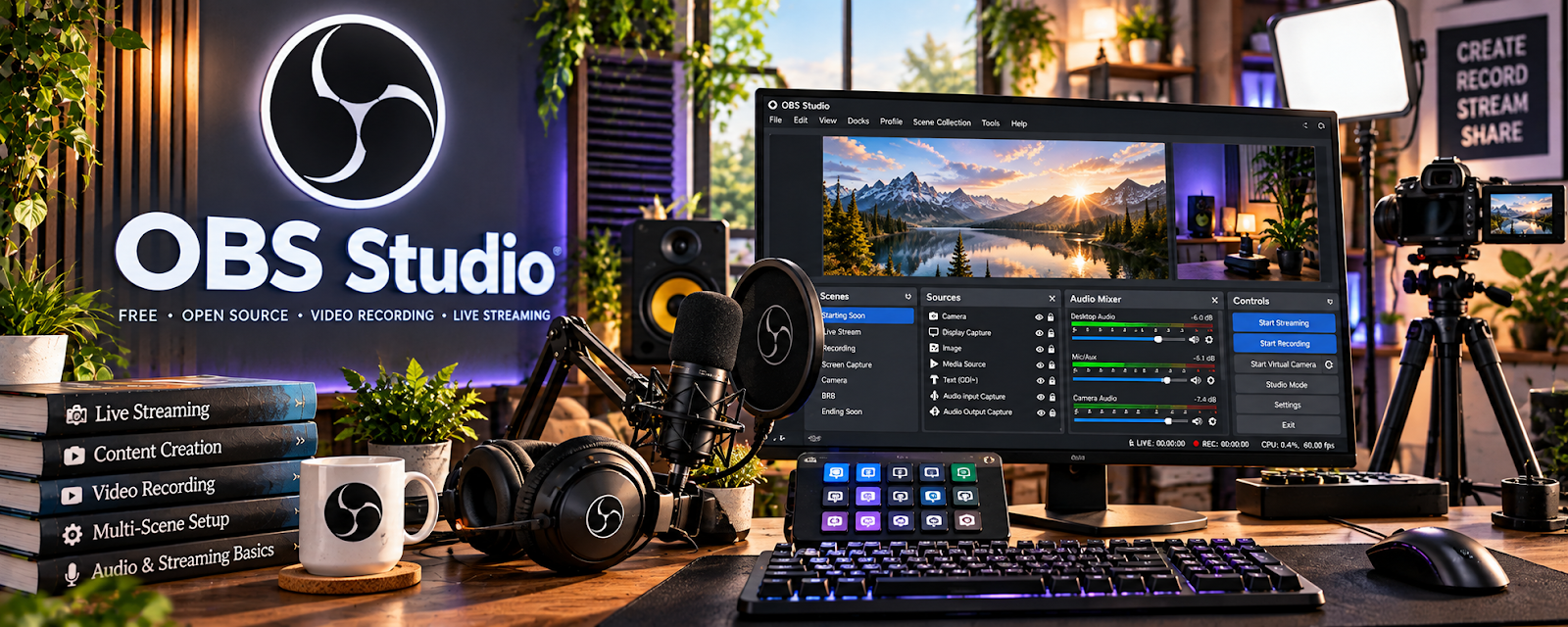
Official Website
OBS Studio is a free, open-source recording and live streaming tool.
🔗 Visit Official Website — OBS Studio
Domain: obsproject.com
What This Website Is
OBS Studio is a free, open-source recording and live streaming tool. For the 🎓 Online Course Creation side hustle, it can be used to record high-quality screen lessons and manage scenes for consistent production.
How to Apply It to 🎓 Online Course Creation
Use OBS for reliable recording with consistent scenes (camera, slides, screen capture).
Step-by-Step Implementation:
- Phase 1: Set up scenes (screen + webcam + mic) and audio levels.
- Phase 2: Record lessons in batches with the same scene layout.
- Phase 3: Organize raw files and edit in your preferred editor.
Common Use Cases for this Side Hustle:
- Scenario A: If recording quality is inconsistent, standardize scenes and audio.
- Scenario B: If you want faster batching, record multiple lessons in one session.
- Scenario C: If you want flexibility, record separate audio/video tracks.
When to Use This
- You want free high-quality recording.
- You record screen + webcam lessons.
- You want consistent production scenes.
- You’re comfortable with a little setup.
Best Tasks to Use It For
- Screen recording course lessons
- Scene setup for consistent framing
- Audio level management
- Batch recording sessions
- Capturing raw files for editing
Getting Started Steps
- Install OBS Studio.
- Create 2–3 scenes (slides, screen, webcam).
- Configure mic and audio levels.
- Set recording resolution and file location.
- Record a short test and review quality.
- Record lessons in batches.
- Export raw files to your editing workflow.
Good Beginner Search Terms
- OBS Studio screen recording setup
- OBS audio settings best practice
- OBS scenes for course creators
- record webcam and screen OBS
- how to reduce noise in recordings
- OBS vs Camtasia
Monetization Angle
OBS lowers production cost and can increase profits by enabling high-quality recording without paid software.
Pros
- Free and powerful
- Great control over scenes and audio
- Produces high-quality raw recordings
Cons
- Setup complexity
- Editing is separate (you need another editor)
- Can be intimidating for beginners
Who Should Use This
Course creators who want high-quality recording for free and are willing to set up scenes once.
Who Should Skip This
Skip this if you want the simplest “record + edit in one tool” workflow.
Practical Applications
- Create a recording scene with only the applications needed for a course lesson.
- Record a short test and review voice clarity, screen readability, and synchronization.
- Keep a repeatable pre-recording checklist and organize the resulting media for editing.
Important Considerations
- Check recording performance, file settings, storage, and audio levels before a long session.
- Hide private tabs and notifications, and clear rights for anything captured. OBS handles recording and streaming workflows, not a complete course-hosting or editing service.
Related Resources
Camtasia — combines screen recording and editing if you want a more polished all-in-one course production tool
CapCut — edits OBS recordings into short clips, course previews, and polished lesson segments
Loom — simpler async recording option for quick walkthroughs, feedback, and lightweight lessons
Google Drive — stores raw recordings, exports, project files, and course assets
Related Side Hustles
 Online Course Creation: Turn Your Knowledge Into Income — record clean lessons and batches without paying for software
Blogging: Build an Online Brand and Earn from Your Words — record quick tutorial clips to embed in posts and increase time-on-page
 Affiliate Marketing: Get Paid to Promote What You Love — create demo videos and tutorials that convert viewers into affiliate buyers