Official Website
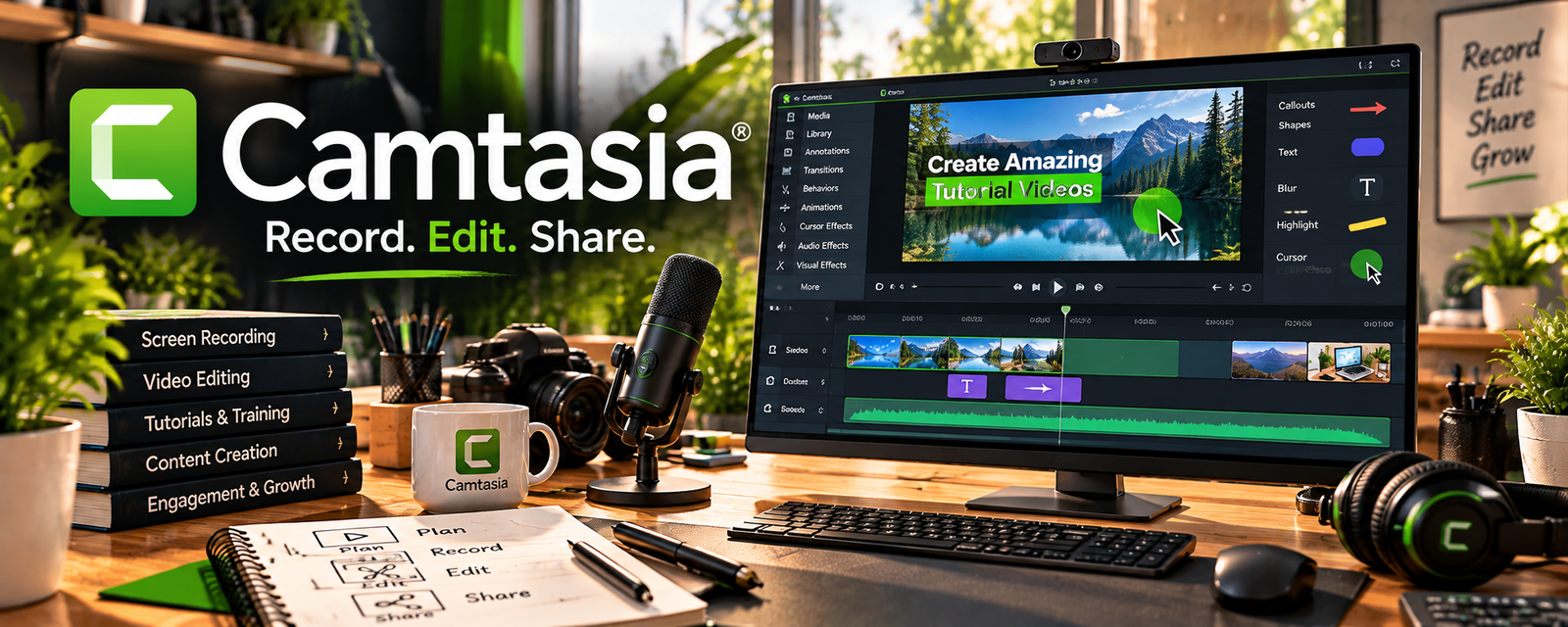
Camtasia is a paid screen recording and video editing tool.
🔗 Visit Official Website — Camtasia
Domain: www.techsmith.com
What This Website Is
Camtasia is a paid screen recording and video editing tool. For the 🎓 Online Course Creation side hustle, it can be used to record lessons, edit walkthroughs, add callouts/captions, and produce polished videos.
How to Apply It to 🎓 Online Course Creation
Use Camtasia as your end-to-end lesson production tool: record → edit → package → publish.
Step-by-Step Implementation:
- Phase 1: Build a lesson outline and recording setup (mic, lighting, screen layout).
- Phase 2: Record modules in batches and keep raw files organized.
- Phase 3: Edit with a repeatable template (intro/outro, lower thirds, captions) and export consistently.
Common Use Cases for this Side Hustle:
- Scenario A: If your videos feel rough, use templates and callouts.
- Scenario B: If you need faster editing, batch-record and reuse presets.
- Scenario C: If you want higher perceived value, add captions and polish.
When to Use This
- You’re recording screen-based lessons.
- You want one tool for recording + editing.
- You need callouts, captions, and clean exports.
- You’re producing content regularly.
Best Tasks to Use It For
- Screen recording lessons
- Editing course videos
- Adding callouts/captions
- Audio cleanup and pacing
- Exporting consistent video packages
Getting Started Steps
- Install Camtasia and set up your recording presets.
- Create a folder structure per course/module.
- Record a short sample lesson.
- Build an editing template (intro/outro, title cards).
- Add captions/callouts as needed.
- Export using a standard resolution/bitrate.
- Reuse the same workflow for every module.
Good Beginner Search Terms
- Camtasia course editing workflow
- how to record screen tutorials
- course video editing template
- captions best practices
- audio cleanup for screen recordings
- create callouts in Camtasia
Monetization Angle
Better production quality can support higher course prices and fewer refunds. Camtasia helps you ship polished lessons faster.
Pros
- All-in-one recording + editing
- Great for tutorials and screen lessons
- Templates speed up production
Cons
- Paid software
- Learning curve for editing workflow
- Can be heavy on older computers
Who Should Use This
Course creators producing screen-based lessons who want a repeatable, professional editing workflow.
Who Should Skip This
Skip this if you only need very basic edits or you already have a full editing suite you prefer.
Practical Applications
- Record a short course lesson using a prepared script and clean desktop.
- Edit pauses and errors, then check audio clarity and readable on-screen content.
- Export and test the lesson in the format required by your delivery platform.
Important Considerations
- Check licensing, hardware requirements, export options, and any paid assets used in the lesson.
- Obtain rights to footage, music, and demonstrations, and remove sensitive screen information. Recording software does not provide course hosting or guarantee teaching quality.
Related Resources
OBS Studio — records screen lessons and raw course footage before editing
CapCut — lightweight editing option for repurposing course clips into short-form content
Loom — records quick walkthroughs, feedback videos, or simpler lesson drafts
Google Drive — stores raw footage, exports, project files, and course assets
Related Side Hustles
 Freelance Writing: Get Paid to Write Online — writing helps with lesson scripts, outlines, and course marketing copy
 Virtual Assistance — VA work can support course ops (uploading, edits, customer support) as you scale
 Blogging: Build an Online Brand and Earn from Your Words — repurpose lessons into posts and use content to drive course sales