Official Website
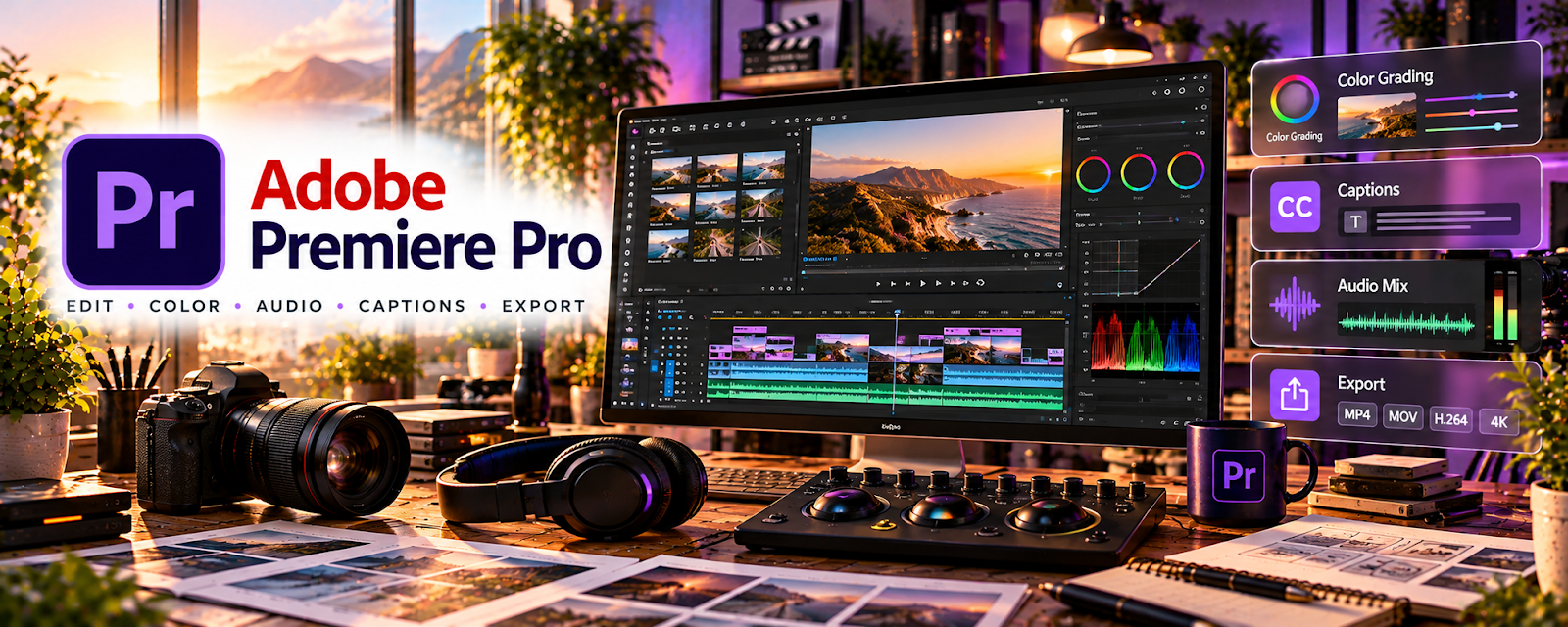
Adobe Premiere Pro is a paid professional video editor for cutting, assembling, and exporting high-quality videos.
🔗 Visit Official Website — Adobe Premiere Pro
Domain: www.adobe.com
What This Website Is
Adobe Premiere Pro is a paid professional video editor for cutting, assembling, and exporting high-quality videos. For the 🎓 Online Course Creation side hustle, it can be used to edit lessons, add graphics, and produce polished course videos.
How to Apply It to 🎓 Online Course Creation
Use Premiere Pro as your “course production editor”: assemble → polish → export → upload.
Step-by-Step Implementation:
- Phase 1: Create a course editing template (intro/outro, lower-thirds, audio levels).
- Phase 2: Edit lessons in batches (module by module).
- Phase 3: Export in consistent settings and upload to your course platform.
Common Use Cases for this Side Hustle:
- Scenario A: If lessons feel messy, tighten pacing and remove filler.
- Scenario B: If audio is uneven, normalize and use consistent mastering.
- Scenario C: If branding is inconsistent, use reusable graphics presets.
When to Use This
- You want polished, professional video.
- You’re producing many lessons.
- You need strong export control.
- You want a repeatable editing template.
Best Tasks to Use It For
- Editing course lessons
- Adding graphics/lower-thirds
- Cutting mistakes and filler
- Exporting consistent videos
- Batch production workflows
Getting Started Steps
- Create a “Course Template” project.
- Import your footage and audio.
- Build reusable sequences (intro/outro).
- Edit one lesson end-to-end.
- Save presets for exports.
- Batch-edit remaining lessons.
- Export and upload.
Good Beginner Search Terms
- Premiere Pro course editing workflow
- export settings for course videos
- audio leveling Premiere Pro
- lower thirds template tutorial
- batch export Adobe Media Encoder
- edit talking head videos faster
Monetization Angle
Higher production quality increases perceived value, supporting higher pricing and better student completion.
Pros
- Professional editing power
- Strong export control
- Scales well for batch production
Cons
- Paid subscription
- Learning curve
- Can be heavy on computer resources
Who Should Use This
Course creators who want professional editing control and plan to produce lots of video lessons.
Who Should Skip This
Skip this if you want a lightweight editor and don’t need advanced features.
Practical Applications
- Edit a short pilot lesson before producing a full course.
- Add readable supporting graphics and carefully reviewed captions.
- Export a test lesson and check playback in the intended course platform.
Important Considerations
- Review subscription costs, hardware needs, export specifications, and current platform limits.
- License music, visuals, and fonts properly; check accessibility and intelligibility rather than assuming polished effects improve teaching.
Related Resources
Adobe Audition — Cleans lesson audio and improves voice quality before publishing.
CapCut — Provides a lighter editing option for short-form lesson clips and promos.
Loom — Records quick screen tutorials and rough lesson drafts.
Google Drive — Stores raw footage, exports, scripts, and course assets.
Related Side Hustles
 Online Course Creation: Turn Your Knowledge Into Income — This is the direct course video workflow Premiere Pro supports.
Blogging: Build an Online Brand and Earn from Your Words — Lesson scripts and course topics can become supporting blog content.
 Affiliate Marketing: Get Paid to Promote What You Love — Course videos can recommend tools and drive affiliate revenue.