Official Website
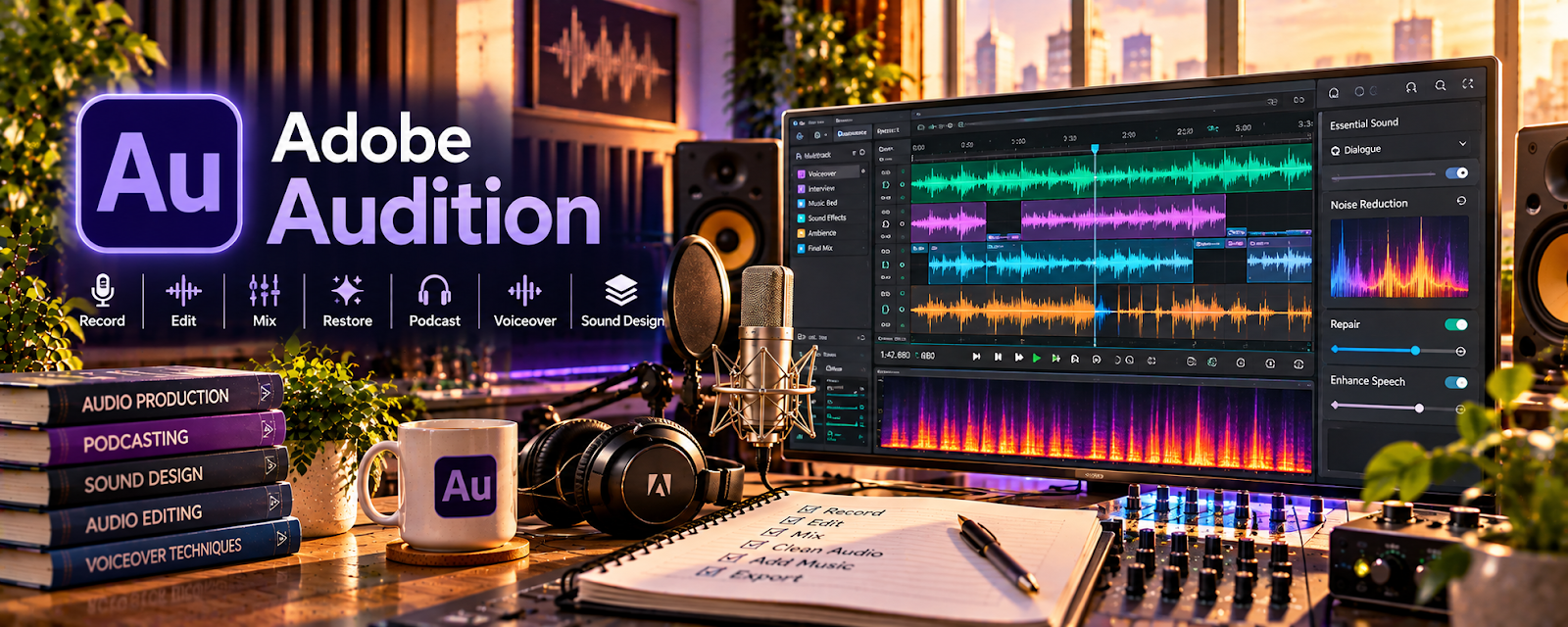
Adobe Audition is a paid audio editing tool with multi-track editing, noise reduction, EQ/compression, and mastering features related to cleaning and enhancing voice recordings.
🔗 Visit Official Website — Adobe Audition
Domain: www.adobe.com
What This Website Is
Adobe Audition is a paid audio editing tool with multi-track editing, noise reduction, EQ/compression, and mastering features related to cleaning and enhancing voice recordings. For a 🎙️ Transcription Jobs side hustle, it can be used to make difficult audio clearer, reduce listening fatigue, and improve your accuracy and speed on real transcription assignments.
How to Apply It to Transcription Jobs
Use Adobe Audition as your “audio cleanup” step before (or during) transcription. The tactical application is to reduce noise, even out volume, and isolate speech so you can understand speakers faster and produce a more accurate transcript—especially for low-quality recordings.
Step-by-Step Implementation:
- Phase 1: Import the audio, set up a simple folder workflow (Raw / Clean / Exports), and save a basic cleanup preset
- Phase 2: Apply noise reduction + EQ + compression to improve speech clarity, then export a clean version for transcription
- Phase 3: Use the same preset on every job, batch-process multiple files, and refine your settings as you encounter different audio problems
Common Use Cases for this Side Hustle:
- Scenario A: If the audio is noisy or muffled, use Audition to clean it up before transcribing so you make fewer mistakes
- Scenario B: If speakers have inconsistent volume, use compression/normalization so you can transcribe faster without constantly adjusting playback volume
When to Use This
- You routinely receive low-quality audio that’s hard to understand
- You want to improve accuracy on tougher files (accents, background noise)
- You want to reduce re-listening time and speed up transcription
- You’re taking transcription tests and want the cleanest audio possible
- You want a repeatable audio workflow for higher-volume work
Best Tasks to Use It For
- Noise reduction and speech cleanup
- Volume leveling for multi-speaker files
- Removing hum/clicks and distracting sounds
- Exporting “clean” audio versions for transcription
- Building reusable presets for common audio issues
Getting Started Steps
- Visit Adobe Audition.
- Create a simple folder structure for transcription audio files.
- Import a hard-to-hear sample and apply noise reduction.
- Use EQ to boost vocal clarity and reduce muddy frequencies.
- Normalize/compress the track so volume stays consistent.
- Export a cleaned audio file and transcribe from that version.
- Save your settings as a preset and reuse it on future jobs.
Good Beginner Search Terms
- Adobe Audition clean up audio for transcription
- Adobe Audition noise reduction voice
- EQ settings for speech clarity
- normalize audio for transcription work
- remove hum and hiss in Adobe Audition
- batch process audio in Adobe Audition
Monetization Angle
Cleaner audio can directly increase your effective hourly rate in transcription: fewer mistakes, less re-listening, and faster turnaround. That means you can complete more files, qualify for harder (better-paying) work, and build a reputation for accurate transcripts even when the source audio is messy.
Pros
- Powerful tools for making speech easier to understand
- Presets can create a repeatable workflow
- Helps accuracy and speed on difficult recordings
Cons
- Paid subscription
- Learning curve for best results
- Can be overkill for already-clean audio
Who Should Use This
This is best for transcriptionists who regularly face noisy, inconsistent, or low-quality audio and want to improve accuracy and speed. It works well if you like building a repeatable workflow and you’re willing to learn basic audio cleanup.
Who Should Skip This
Skip this if you only transcribe very clean audio or you already have a simpler playback tool that meets your needs. It may not be ideal if you want a free-only workflow or you don’t want to spend time learning audio editing.
Practical Applications
- Test gentle noise reduction on client-authorized sample audio.
- Compare cleaned passages against the original before transcribing.
- Export a reviewed working file while retaining the source recording.
Important Considerations
- Processing can remove speech detail and does not make uncertain words reliable.
- Confirm client consent, privacy, format, and retention requirements and verify current software costs; specialist transcripts still require appropriate competence and manual QA.
Related Resources
Descript — Generates transcript drafts after Audition improves audio clarity.
VLC Media Player — Plays files and controls speed during review or manual transcription.
Typing.com — Builds typing speed and accuracy for manual transcript work.
Related Side Hustles
 Transcription Jobs — Adobe Audition helps clean difficult audio so transcripts are faster and more accurate.
 Voiceover Work — The same audio cleanup skills can support voiceover recording and mastering.
Copyediting & Proofreading: Get Paid to Polish Words — Transcript cleanup requires editing, formatting, and accuracy review.