Official Website
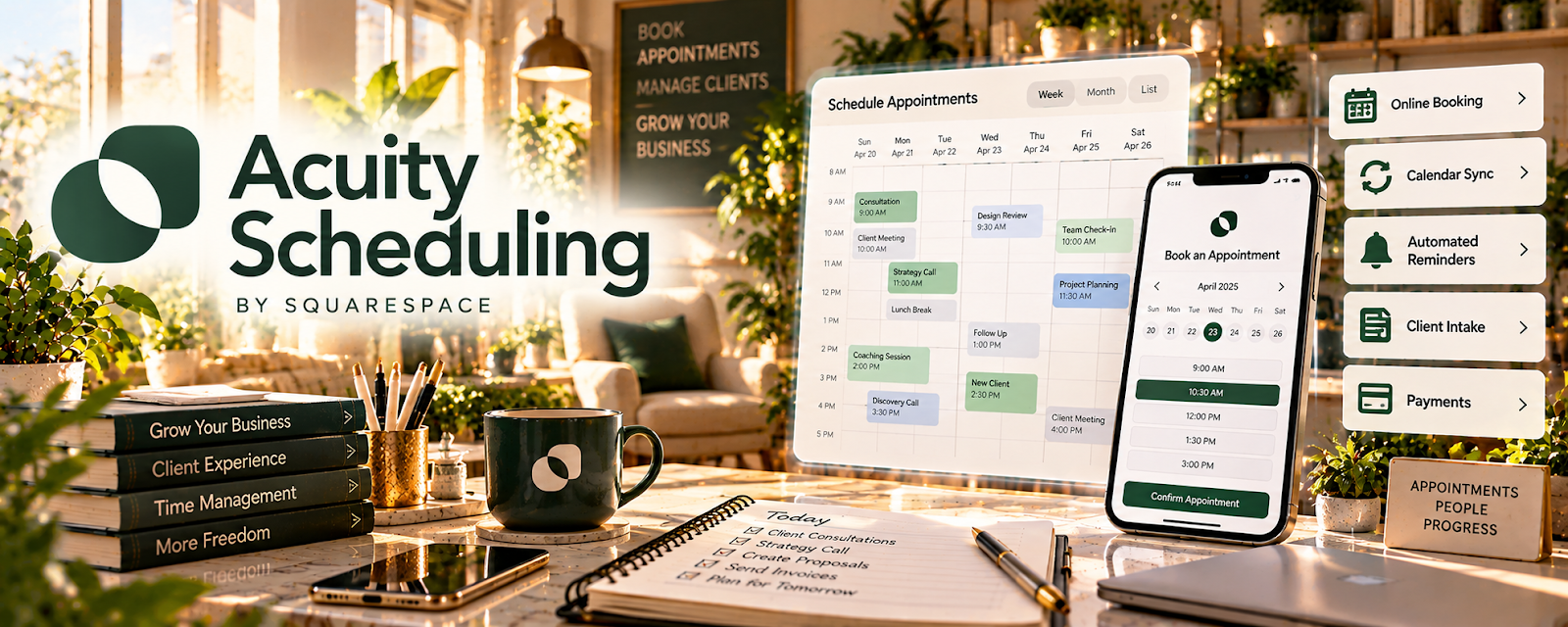
Acuity Scheduling is a paid scheduling tool for booking appointments, intake forms, and automated reminders.
🔗 Visit Official Website — Acuity Scheduling
Domain: acuityscheduling.com
What This Website Is
Acuity Scheduling is a paid scheduling tool for booking appointments, intake forms, and automated reminders. For the 🗂️ Virtual Assistance side hustle, it can be used to set up professional client booking flows and reduce admin back-and-forth.
How to Apply It to 🗂️ Virtual Assistance
Use Acuity to productize scheduling and onboarding: booking link → intake → reminders → follow-up.
Step-by-Step Implementation:
- Phase 1: Create appointment types (discovery, onboarding, weekly check-in).
- Phase 2: Add intake questions and automate confirmations/reminders.
- Phase 3: Build a repeatable weekly rhythm (recurring meetings + reschedule rules).
Common Use Cases for this Side Hustle:
- Scenario A: If scheduling takes too long, use one booking link.
- Scenario B: If clients no-show, automate reminders and deposits (if needed).
- Scenario C: If onboarding is inconsistent, use intake forms and templates.
When to Use This
- You schedule calls for clients regularly.
- You want intake forms and reminders.
- You want fewer scheduling emails.
- You want a more professional booking experience.
Best Tasks to Use It For
- Client booking links
- Intake questionnaires
- Automated reminders
- Rescheduling rules
- Time-blocking your calendar
Getting Started Steps
- Create an Acuity account.
- Connect your calendar.
- Build 2–3 appointment types.
- Add intake questions.
- Turn on reminders and confirmation emails.
- Add your booking link to email/signature.
- Use it as your default scheduling process.
Good Beginner Search Terms
- Acuity scheduling setup tutorial
- intake form questions for VAs
- reduce client no shows reminders
- scheduling link best practices
- reschedule policy template
- appointment types service business
Monetization Angle
Less admin time means more billable time. A polished booking flow can also support higher rates and fewer missed appointments.
Pros
- Professional scheduling experience
- Intake + reminders reduce admin work
- Helps systemize recurring meetings
Cons
- Paid tool
- Setup required to get value
- Overkill if you schedule rarely
Who Should Use This
Virtual assistants who schedule client calls regularly and want a repeatable booking + intake workflow.
Who Should Skip This
Skip this if your clients already require a specific scheduling system and you can’t use your own.
Practical Applications
- Configure a client-approved booking flow for an introductory appointment.
- Test intake questions, time-zone handling, and reminder messages.
- Document how bookings, cancellations, and rescheduling should be handled.
Important Considerations
- Obtain authorization before changing a client’s availability, payment settings, or shared calendars.
- Check plan features, privacy, integrations, and accessibility, and collect only the information needed to run the appointment.
Related Resources
Google Calendar — Syncs booking availability and keeps appointments visible across calendars.
Zoom — Hosts discovery calls, onboarding sessions, and recurring client meetings.
Loom — Records async walkthroughs, SOPs, and client updates when meetings are unnecessary.
Notion — Organizes client dashboards, SOPs, task lists, and recurring meeting notes.
Related Side Hustles
 Consulting: Get Paid for What You Know — Uses similar booking, intake, and client-meeting workflows.
 Freelance Writing: Get Paid to Write Online — VAs can package writing support, client updates, and documentation services.
Copyediting & Proofreading: Get Paid to Polish Words — Detail-oriented review supports polished client communications and admin deliverables.