Official Website
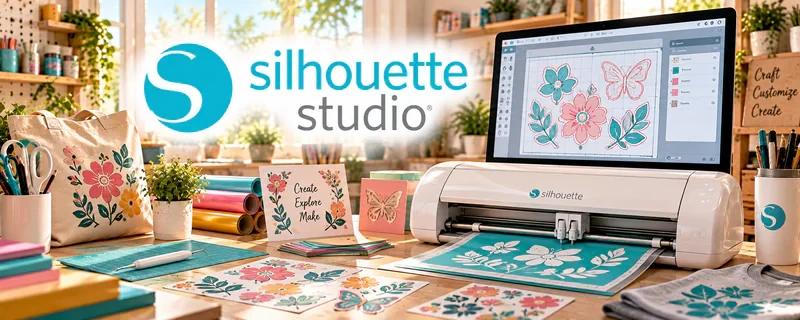
Silhouette Studio is design software used with Silhouette cutting machines for creating and editing cut files.
🔗 Visit Official Website — Silhouette Studio
Domain: www.silhouetteamerica.com
What This Website Is
Silhouette Studio is design software used with Silhouette cutting machines for creating and editing cut files. For the 🧶 Selling Crafts & Handmade Goods side hustle, it can be used to create designs, prepare cut files, and produce products consistently.
How to Apply It to 🧶 Selling Crafts & Handmade Goods
Use Silhouette Studio to turn design ideas into repeatable products: design → cut → assemble → sell.
Step-by-Step Implementation:
- Phase 1: Set up your canvas sizes and a folder of reusable design templates.
- Phase 2: Create cut files for your top products (stickers, vinyl, apparel).
- Phase 3: Standardize production settings (materials, blade depth) and document what works.
Common Use Cases for this Side Hustle:
- Scenario A: If products vary in quality, standardize cut settings.
- Scenario B: If you want to scale, templatize designs and repeat production.
- Scenario C: If you want better margins, reduce waste with better test cuts.
When to Use This
- You produce physical crafts with a cutting machine.
- You need repeatable cut settings.
- You want consistent design templates.
- You want to reduce production errors and waste.
Best Tasks to Use It For
- Cut file creation
- Template designs
- Production settings documentation
- Batch production workflows
- Proofing and test cuts
Getting Started Steps
- Install Silhouette Studio and connect your machine.
- Create a test cut file for your main material.
- Save settings that work (blade depth, speed).
- Build a folder of reusable templates.
- Design and cut one product end-to-end.
- Document the steps and settings.
- Batch produce using the same workflow.
Good Beginner Search Terms
- Silhouette Studio beginner tutorial
- blade depth settings vinyl
- how to make cut files
- craft product production workflow
- sticker cutting settings
- reduce waste crafting production
Monetization Angle
Better production consistency reduces waste and rework, improving margins. Standardized settings also make it easier to fulfill more orders.
Pros
- Purpose-built for cutting workflows
- Supports repeatable templates and settings
- Great for physical product production
Cons
- Learning curve
- Hardware-dependent
- Design features may feel limited vs pro tools
Who Should Use This
Makers using Silhouette machines who want repeatable production settings and consistent designs.
Who Should Skip This
Skip this if you don’t use Silhouette hardware or you only sell digital products.
Practical Applications
- Prepare an original cut-file design and test it on scrap material.
- Document settings for a repeatable craft-production workflow.
- Check dimensions, cut paths, and assembly steps before selling a finished item.
Important Considerations
- Confirm machine compatibility and which file-import or export functions require a particular software edition.
- Review font and design licenses for commercial use, follow equipment safety guidance, and do not assume a purchased file permits resale in every form.
Related Resources
Canva / Canva Mockups — Helps create product mockups, promotional graphics, and simple design assets.
Photopea — Supports image cleanup, layered graphics, and design adjustments before cutting.
Google Drive — Stores cut files, product photos, templates, and order assets.
Notion — Organizes product ideas, production settings, listings, and fulfillment checklists.
Related Side Hustles
 Dropshipping: Start an Online Store Without Holding Inventory — Uses similar product listing, fulfillment, and ecommerce workflow skills.
 Online Course Creation: Turn Your Knowledge Into Income — Craft processes can become tutorials, workshops, or paid courses.
 Affiliate Marketing: Get Paid to Promote What You Love — Craft tools and materials can be recommended through niche content.