Official Website
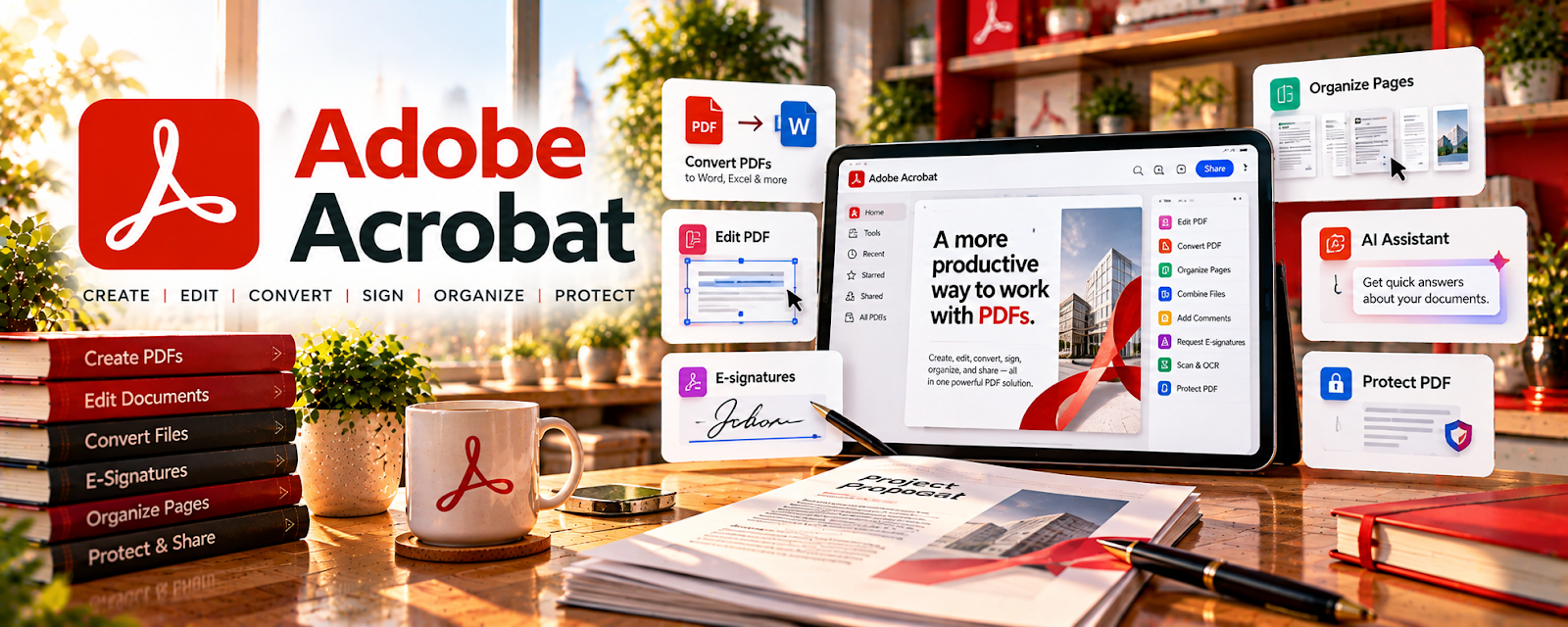
Adobe Acrobat is a paid document tool with PDF editing, combining, OCR, e-signatures, and file conversion related to working with client documents.
🔗 Visit Official Website — Adobe Acrobat
Domain: www.adobe.com
What This Website Is
Adobe Acrobat is a paid document tool with PDF editing, combining, OCR, e-signatures, and file conversion related to working with client documents. For a 🗂️ Virtual Assistance side hustle, it can be used to clean up PDFs, prepare client-ready files, handle forms and signatures, and reduce document back-and-forth.
🚀 How to Apply It to Virtual Assistance
Use Adobe Acrobat as your “PDF operations” toolkit: converting messy files into professional deliverables, collecting signatures, and standardizing documents so clients can move faster. The tactical value is speed + polish—turning document chaos into a repeatable system.
Step-by-Step Implementation:
- Phase 1: Set up Acrobat, confirm your client’s brand/file standards (naming, folder locations), and identify the 3–5 recurring PDF tasks they need help with
- Phase 2: Create reusable workflows (combine + compress + OCR + rename; or fill + sign + export) and templates/checklists for common document requests
- Phase 3: Turn the workflow into an SOP and deliver faster turnaround (weekly batch processing, signature tracking, version control)
Common Use Cases for this Side Hustle:
- Scenario A: If a client constantly sends scanned documents, use OCR + cleanup so files are searchable and professional
- Scenario B: If a client needs signatures fast, use e-sign + tracking so contracts don’t stall the sales pipeline
When to Use This
- You’re supporting a client with lots of PDFs (contracts, proposals, onboarding docs)
- You need OCR/searchable text for scanned files
- You want to compress/merge files to reduce email/file chaos
- You need e-signature workflows that clients can follow easily
- You want faster turnaround and fewer revision cycles on docs
Best Tasks to Use It For
- PDF cleanup and formatting
- OCR and searchable document creation
- Combining/compressing client files
- E-signature collection and tracking
- Converting files (Word/Images ↔ PDF)
Getting Started Steps
- Visit Adobe Acrobat and sign in.
- Confirm where the client stores documents (Drive/Dropbox/etc.).
- Ask for 3 example documents that represent “normal” client work.
- Build a simple checklist for cleanup (rename → OCR → compress → export).
- Set up an e-sign workflow for one common document (contract/intake form).
- Run a test batch and get client approval on the output format.
- Document the process as an SOP and repeat weekly.
Good Beginner Search Terms
- Adobe Acrobat OCR scanned PDF
- compress PDF without losing quality
- combine multiple PDFs into one
- Adobe Acrobat fill and sign workflow
- PDF file naming convention SOP
- virtual assistant document management
Monetization Angle
PDF cleanup and signature workflows are high-value admin work that clients often procrastinate on. You can charge for one-time document system setup (SOP + templates + folder structure) and ongoing “document operations” retainers (weekly cleanup, signature tracking, updating forms), making Acrobat a tool that supports recurring VA income.
Pros
- Professional-quality PDF tooling
- OCR and compression save clients time
- E-signature keeps deals moving
Cons
- Paid subscription cost
- Some features have a learning curve
- Overkill for clients with very light document needs
Who Should Use This
This is best for VAs supporting clients who handle contracts, forms, proposals, or frequent PDFs. It works well if you like organizing information, standardizing workflows, and delivering polished files quickly.
Who Should Skip This
Skip this if your client only uses simple Google Docs and rarely touches PDFs. It may not be ideal if the client already has a dedicated e-sign tool and minimal document formatting needs.
Practical Applications
- Prepare an authorized PDF deliverable and check the result.
- Test OCR against the source for names, figures, and formatting.
- Use approved signing or sharing workflows with appropriate sample documents.
Important Considerations
- Verify current edition features, e-signature terms, privacy, retention, costs, and client authorization.
- Conversion and OCR can introduce errors and visual redaction may be insufficient; validate accessibility, permanent removal where needed, and legal suitability rather than assuming a PDF or signature resolves every requirement.
Related Resources
Google Drive — Stores source files, finished PDFs, signed documents, and client folders.
Trello — Tracks document requests, review status, and signature follow-ups.
Microsoft Excel — Supports spreadsheets and reports that may need conversion, cleanup, or PDF delivery.
Related Side Hustles
 Virtual Assistance — Adobe Acrobat supports PDF cleanup, OCR, combining files, e-signatures, forms, and document operations.
 Copyediting & Proofreading: Get Paid to Polish Words — Clean PDFs and markups can support editing delivery and client review workflows.
 Selling Digital Products — Fillable PDFs, workbooks, and templates can become downloadable products.