Official Website
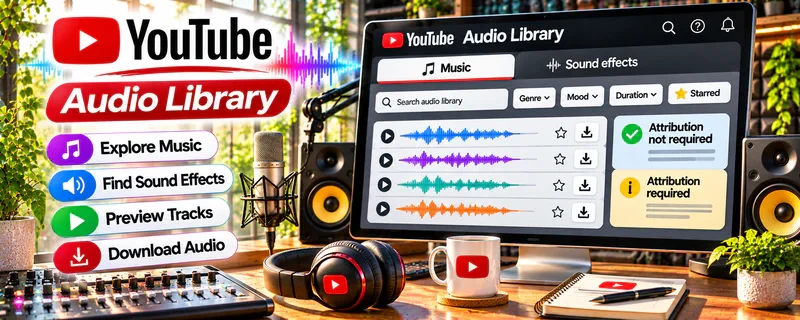
YouTube Audio Library is a free stock music and sound effects library inside YouTube Studio.
🔗 Visit Official Website — YouTube Audio Library
Domain: www.youtube.com
What This Resource Is
YouTube Audio Library is a free stock music and sound effects library inside YouTube Studio. For ▶️ YouTube Automation, it works as a beginner-friendly production resource because it gives creators a safer place to source background music, transitions, sound effects, and mood-setting audio for repeat video formats. It is especially useful for faceless channels, narrated explainers, list videos, tutorial channels, and outsourced editing workflows where consistent, policy-aware audio choices matter.
What You Can Learn From This Resource
- How to find free music and sound effects for YouTube videos without pulling random copyrighted songs from the web.
- How to filter tracks by genre, mood, artist, duration, attribution requirement, and use case.
- How background music affects pacing, tone, retention, perceived quality, and viewer comfort.
- How to check license notes and attribution requirements before publishing a video.
- How to build a reusable audio bank for intros, outros, background beds, transitions, and recurring video series.
- How to match music energy to the script, niche, voiceover, topic seriousness, and audience expectation.
- How to standardize audio selection when multiple editors, contractors, or production templates are involved.
- How to avoid common beginner mistakes such as music overpowering narration, mismatched tone, repetitive tracks, or unclear attribution records.
How to Apply It to ▶️ YouTube Automation
Use YouTube Audio Library as the audio-sourcing and compliance step in your automated video production workflow. The goal is not just to download tracks; it is to create a repeatable audio system that supports faster editing, clearer narration, safer publishing, and more consistent channel branding.
Step-by-Step Implementation:
- Phase 1: Open the Audio Library inside YouTube Studio, review the available filters, and check attribution or licensing notes before downloading any track.
- Phase 2: Build a small approved audio folder for your channel niche, with separate groups for background music, intro/outro music, transitions, suspense, upbeat segments, and low-distraction narration beds.
- Phase 3: Use the same audio log across videos, monitor audience retention and viewer feedback, then replace tracks that feel distracting, overused, too loud, or inconsistent with the channel’s style.
Common Use Cases for This Side Hustle:
- Scenario A: A beginner faceless channel needs background music for list videos, explainers, or scripted educational content without risking obvious copyright issues.
- Scenario B: A production workflow uses contractors or AI-assisted editing, so the creator creates an approved audio library with clear track names, license notes, and use cases.
- Scenario C: A channel has inconsistent production quality, so the creator standardizes intro music, transition sounds, and low-volume background tracks for repeatable video formats.
When to Use This
- Before editing a new YouTube video that needs music or sound effects.
- When replacing risky copyrighted music, trending songs, or unclear audio assets.
- When building a repeatable faceless-video production workflow.
- When creating intros, outros, transitions, list-video segments, or background music beds.
- When you need a simple approved-audio folder for editors, contractors, or repeat templates.
- When checking attribution requirements before publishing or monetizing a video.
- When improving production polish without paying for a stock audio subscription yet.
Recommended Learning Path
- Access: Learn where the Audio Library lives inside YouTube Studio and how to search it quickly.
- Licensing: Review attribution, track details, and YouTube’s current audio-use guidance before downloading.
- Selection: Choose tracks that fit the niche, video pace, narration style, and target viewer.
- Editing: Balance music under voiceover so the script remains clear and easy to follow.
- Organization: Save approved tracks by mood, video type, series, and attribution requirement.
- Review and Refine: Compare retention, comments, and editing notes to decide which tracks should stay in the workflow.
Getting Started Steps
- Open YouTube Studio and go to the Audio Library.
- Search by mood, genre, duration, or use case, such as calm background, upbeat intro, or transition sound.
- Check whether the track requires attribution and copy the attribution notes into your video-production log.
- Download 5–10 tracks that fit your channel’s niche, tone, and common video formats.
- Add one track to a draft video at low volume, then review whether the narration remains clear.
- Save the final track choice, source, attribution requirement, and use case in a repeatable audio tracker.
- Reuse only the strongest tracks, rotate options to avoid repetition, and recheck license notes if the track or platform guidance changes.
Recommended Searches on This Resource
- calm background music
- upbeat intro music
- cinematic background
- corporate background music
- ambient background music
- suspense background music
- transition sound effect
- notification sound effect
- whoosh sound effect
- no attribution required
Best Practices
- Confirm license and attribution notes before every use; do not assume a track’s requirements are unchanged forever.
- Keep music lower than narration, especially in educational, tutorial, and explainer videos.
- Match music energy to the topic; serious finance, health, or tutorial content usually needs less aggressive audio than entertainment content.
- Create a simple audio log with track name, source, attribution requirement, video used, and editor notes.
- Avoid using the same loud or highly recognizable track in every video because it can make the channel feel repetitive.
- Test audio on headphones, laptop speakers, and phone speakers before publishing.
- Treat the library as one production source; still verify YouTube monetization, copyright, reused-content, and platform policies separately.
- Do not imply endorsement from artists, YouTube, or music providers; use tracks only within the terms shown for that asset.
Monetization Angle
YouTube Audio Library can support monetization indirectly by reducing avoidable copyright issues, speeding up editing, improving production consistency, and making videos feel more polished. For YouTube Automation, cleaner audio workflows can help a channel publish more consistently and reduce rework, but revenue still depends on original value, strong scripts, audience retention, compliant content, packaging, consistency, and meeting YouTube monetization requirements.
Pros
- Free access to music and sound effects inside the YouTube ecosystem.
- Beginner-friendly source for creators who are not ready for paid stock-audio subscriptions.
- Useful for faceless channels, narration-heavy videos, tutorials, and repeat production templates.
- Helps reduce the temptation to use copyrighted songs from random websites or social media.
- Easy to turn into a repeatable production checklist for editors and contractors.
- Supports consistent channel sound when tracks are chosen and documented intentionally.
Cons
- Track selection may feel limited compared with paid stock libraries.
- Some tracks can sound generic or overused if many creators use the same options.
- Licensing and attribution notes still require attention; free does not mean “ignore the terms.”
- Music will not fix weak scripts, poor thumbnails, low-retention editing, or thin content.
- The library is YouTube-focused, so creators repurposing content elsewhere should review each platform’s rules.
Who Should Use This
YouTube Audio Library is best for beginner YouTube Automation creators, faceless-channel operators, editors, and content teams that need free, accessible, lower-risk music and sound effects for repeatable video production workflows.
Who Should Skip This
Skip this if you need custom scoring, exclusive music rights, premium brand sound design, large commercial licensing coverage, advanced audio mixing, or legal advice for complex licensing questions.
Practical Applications
- Choose music or effects that support a video’s mood without overpowering narration.
- Record the track name, source, and license details with your project assets.
- Check the final mix and add any required attribution before publishing.
Important Considerations
- Review the license attached to the specific track and intended use; free access does not mean unrestricted reuse.
- Do not assume that availability in the library resolves every rights question or permits redistribution of the standalone audio. Keep evidence of the terms you relied on.
Related Resources
 YouTube Studio — houses the Audio Library and provides the upload, analytics, comments, and channel-management dashboard.
YouTube Creators — adds official creator education on content strategy, monetization, policies, Shorts, and audience growth.
YouTube Help Center — provides official support guidance for copyright, monetization, uploads, troubleshooting, and channel settings.
Storyblocks — offers a paid stock media option when the workflow needs broader music, footage, templates, and sound effects.
 Think Media (YouTube Channel) — complements production assets with YouTube strategy, content planning, equipment, and channel-growth education.
VidIQ Tool — supports topic research, keyword ideas, video optimization, and channel-growth decisions after the video is produced.
Related Side Hustles
 YouTube Automation: Make Money Without Showing Your Face — directly depends on repeatable video-production systems, including audio sourcing, editing, publishing, and optimization.
 Social Media Management — uses platform-safe audio, production assets, and repeatable editing workflows for client content.
UGC Creation — benefits from better sound selection, pacing, and mobile-first editing polish.
 Selling Digital Products — can use YouTube videos with clean audio to demonstrate, explain, and promote templates, guides, and digital offers.