Official Website
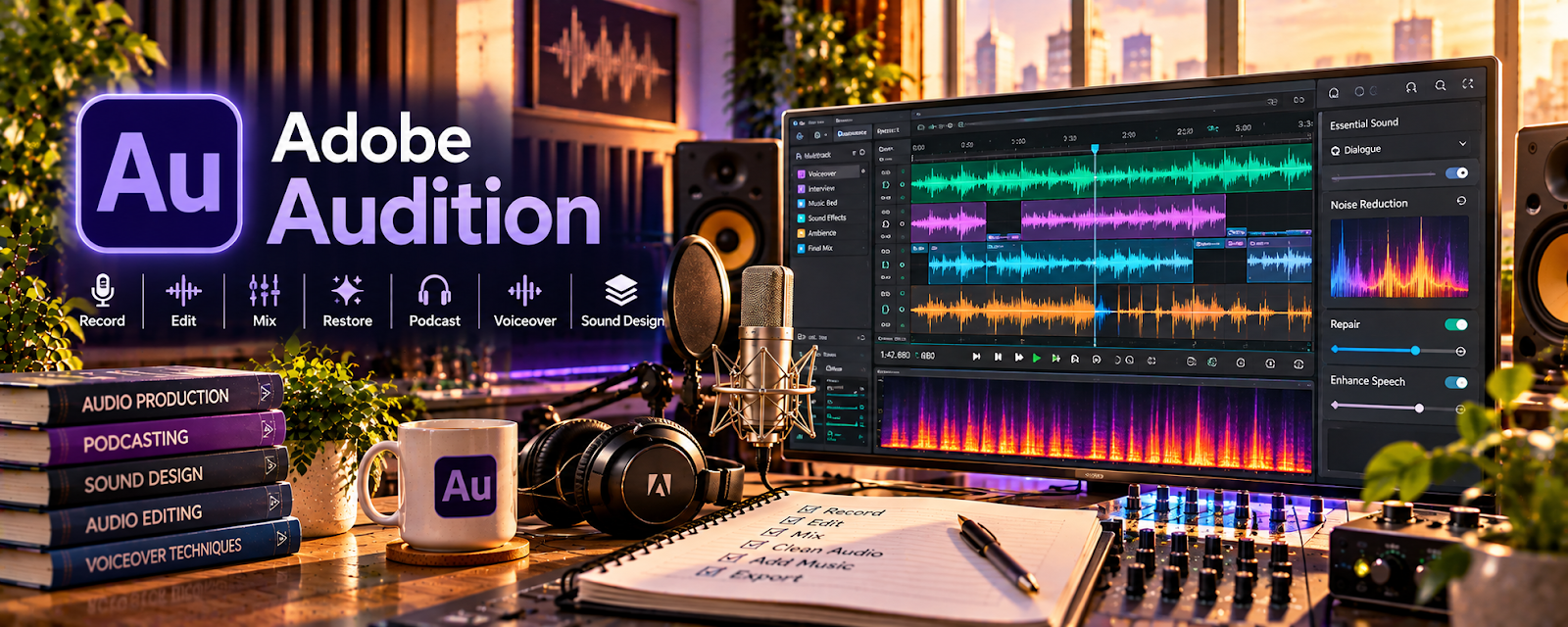
Adobe Audition is a paid audio editing tool with multi-track editing, noise reduction, EQ/compression, and mastering features related to producing clean narration and sound.
🔗 Visit Official Website — Adobe Audition
Domain: www.adobe.com
What This Website Is
Adobe Audition is a paid audio editing tool with multi-track editing, noise reduction, EQ/compression, and mastering features related to producing clean narration and sound. For a 🎬 Faceless Video Content Creation side hustle, it can be used to polish voiceovers, keep audio consistent across videos, and build a scalable batch-production workflow.
How to Apply It to Faceless Video Content Creation
Use Adobe Audition to make every video sound professional without spending hours on audio each time. The tactical application is building a simple “audio chain” preset (cleanup → EQ → compression → loudness match), then batch-processing scripts/episodes so you can publish consistently.
Step-by-Step Implementation:
- Phase 1: Set up your recording workflow (mic levels, room noise control, file naming) and save a basic voiceover cleanup preset
- Phase 2: Process one video end-to-end and standardize your loudness so your channel sounds consistent
- Phase 3: Batch-produce: record 3–10 scripts in one session, apply presets in bulk, and export final voice tracks for editing
Common Use Cases for this Side Hustle:
- Scenario A: If your voiceovers sound amateur, use Audition to remove noise and add compression so narration is clear and “broadcast-ready"
- Scenario B: If you’re scaling production, use presets and batch export to reduce time per video and publish more frequently
When to Use This
- You rely on narration and want more professional audio
- You want consistent loudness across videos
- You batch-record scripts and need faster post-processing
- You want to reduce re-recording and audio revisions
- You’re building a repeatable content production system
Best Tasks to Use It For
- Voiceover cleanup and mastering
- Noise reduction and EQ for narration
- Loudness matching across episodes
- Batch exporting with presets
- Multi-track audio (music/SFX/narration)
Getting Started Steps
- Visit Adobe Audition.
- Create a project folder structure (Raw Audio / Edited / Exports).
- Record a short voice sample and import it.
- Apply noise reduction, EQ, and compression until it sounds clean.
- Save your settings as a preset.
- Export with consistent loudness settings for your channel.
- Reuse the preset and batch-process audio whenever possible.
Good Beginner Search Terms
- Adobe Audition voiceover preset
- loudness normalization for YouTube
- Adobe Audition noise reduction narration
- EQ settings for voiceover clarity
- batch process audio Adobe Audition
- compression settings for narration
Monetization Angle
Higher-quality audio improves watch time and viewer trust—two drivers of growth and monetization. Cleaner narration supports more consistent publishing (more videos), better retention (more revenue), and smoother outsourcing because editors receive standardized audio that reduces revisions.
Pros
- Professional audio tools and strong noise reduction
- Presets enable fast, repeatable workflows
- Improves perceived quality of faceless videos
Cons
- Paid subscription
- Learning curve for best results
- Can be more advanced than you need at the start
Who Should Use This
This is best for faceless creators who use narration and want studio-level audio quality with a repeatable workflow. It works well if you batch-produce content, care about consistency, and want to scale output.
Who Should Skip This
Skip this if you’re not doing voiceovers or you only need simple trimming. It may not be ideal if you want a free-only audio editor or you’re not ready to learn basic EQ/compression.
Practical Applications
- Edit authorized narration while preserving a clean source copy.
- Test restrained noise reduction and compare speech clarity.
- Review the complete mix and export against the video workflow’s specifications.
Important Considerations
- Processing can distort words or hide recording problems rather than resolve them.
- Verify current hardware, software, plugin, music, and voice rights and protect confidential material; polished audio does not establish content accuracy or monetization eligibility.
Related Resources
 YouTube Help Center — Provides guidance on platform specs, monetization, and upload requirements.
YouTube Studio — Tracks retention and performance after audio improvements are published.
YouTube Audio Library — Supplies music and sound effects to mix with narration.
Related Side Hustles
 Faceless Video Content Creation: Go Viral Without Showing Your Face — Adobe Audition cleans narration, matches loudness, and builds repeatable audio presets for faceless videos.
 Voiceover Work — Voiceover recording and cleanup use many of the same audio-processing skills.
YouTube Automation: Make Money Without Showing Your Face — Scalable YouTube production benefits from standardized audio cleanup and batch exports.